Outcome
After this guide, moderators will know how to assign a team leader or remove that role without changing the rest of the team’s roster.
Before you start
- You need moderator access to the bingo workspace.
- The player must already be assigned to a team before they can become that team’s leader.
Assign a team leader
- Open the bingo workspace.
- Go to All Teams tab where teams and players are listed.
- Select the Manage Players button.
- Find the player you want to make the leader.
- Open the action menu for the player you want to make the leader.
- Choose Set as leader.
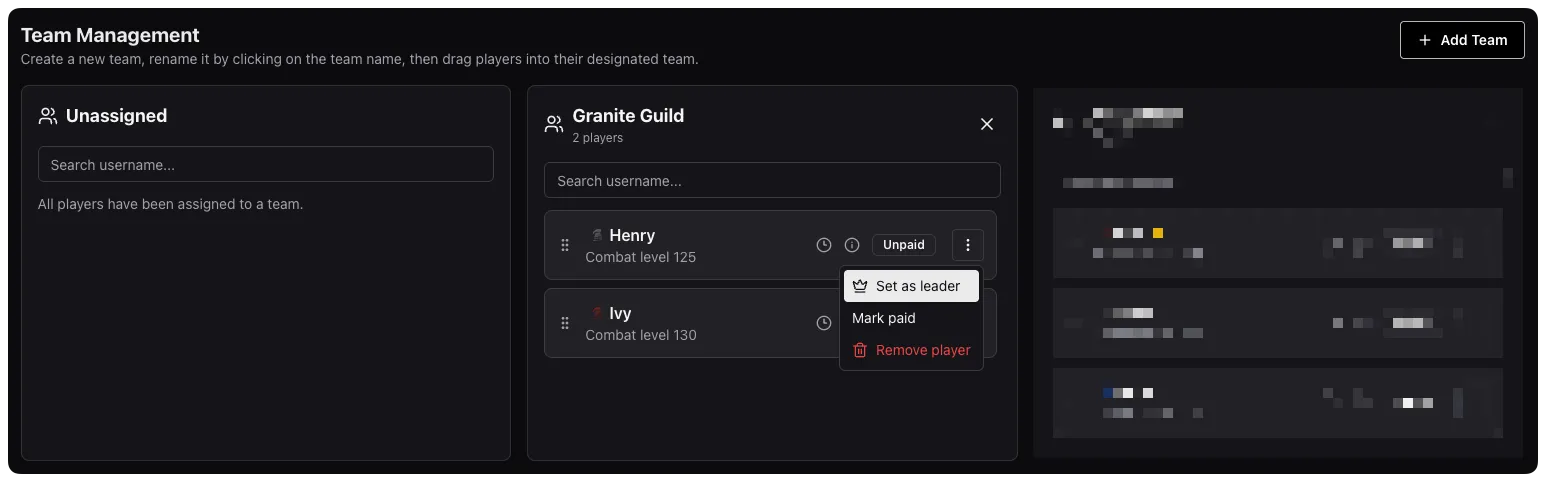
- Confirm the player now shows the crown icon next to their name.

What to know before you change leaders
- A player can only be the leader for a team they are currently on.
- Each team has one leader slot, so setting a new leader replaces the current leader for that team.
- Removing the leader role does not remove the player from the team.
Common gotchas
- If the player is still in Unassigned, move them onto the team first. Unassigned players cannot be promoted into the leader role.
- If you drag the current leader out of the team later, the leader role is cleared automatically.
- Leader changes affect team organization, not tile progress or standings directly.