Outcome
After this guide, moderators will know how to configure a registration fee for a bingo and keep player payment status up to date.
Before you start
- You need moderator access to the bingo.
- Decide whether the event uses a prize pool.
- Decide what registration fee amount players are expected to pay.
Step 1: enable the fee during bingo setup
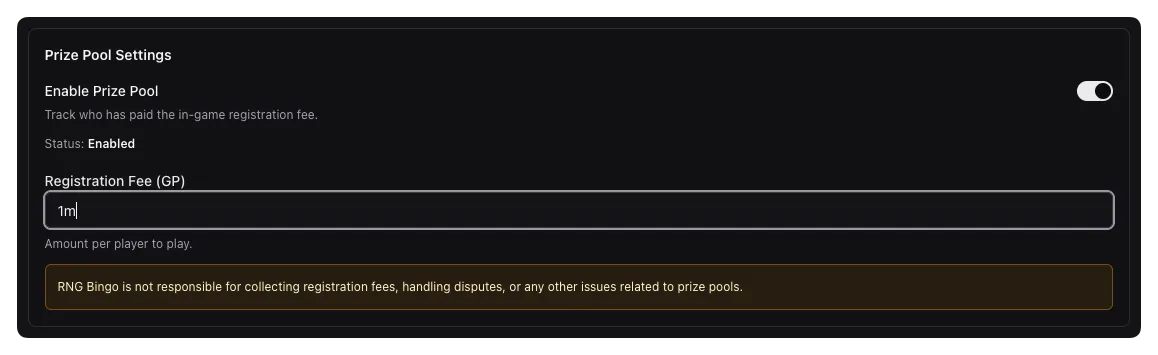
- Open the bingo in edit mode or create a new bingo.
- Turn on Prize Pool Enabled if the event uses paid entry.
- Enter the Registration Fee amount.
- Save the bingo.
Step 2: track who has paid
- Open the bingo workspace and go to All Teams or the player management area.
- Find the player you want to update.
- Open that player’s action menu.
- Choose Mark paid when their fee is confirmed.
 5. If needed later, use Mark unpaid to reverse the status.
Best practices
- Decide on a single source of truth for payment confirmation, such as a Discord channel or spreadsheet.
- Update payment status as soon as possible so teams are not built around outdated assumptions.
- If your event depends on payment before participating, finish marking players as paid/unpaid before the event starts.
Common gotchas
- Enabling a registration fee does not automatically mark anyone as paid.
- Payment status is tracked per player, so moderators still need to review each participant individually.
- Removing a player later also removes them from the active roster, so verify whether a payment issue should be handled as unpaid status or a full removal.